A paragraph style is a saved set of typography settings that you apply by name. Set up a headline one time and save it as “Section Head”. After that, you can apply the same settings to another headline with one click.
What does a style hold?
A style holds the font family, weight, and style. It also holds the size (fixed, responsive, or fit-to-width), the letter spacing, the line height, the first letter hang, the case (for example All Caps or Small Caps), the OpenType features, and the variable font axis values.
A new style writes its size in rem, or in px when Write new font sizes in px is on. Update Style keeps the unit that the style already has.
How do I create one?
Style a block the way you want. Then open the typography panel and click Save Current Settings as Style. Type a name. The style is then available in both editors.
You can also manage styles at Settings → Typography Stylist → Paragraph Styles. Each style shows a preview in its own font and a list of its settings. A style that writes rem shows both values for its size, for example “20px (1.25rem)”. You can edit, rename, or delete a style there.
To use your styles on another site, export them on the Export & Import tab. See Export and import.
How do I edit a style?
Go to Settings → Typography Stylist → Paragraph Styles and click Edit on the style. The form has every setting of the style: the name, font, weight, font style, font size (Default, Fixed, Responsive, or Fit to width with its maximum size and fallback sizes), letter spacing, line height, first letter hang, case, OpenType features, and variable font axes. Change a value and click Save, or press Enter. The other values stay as they are.
The form also has Alignment and line breaking. These settings are only in the form:
- Alignment: Start, Center, End, or Justify. Start and End follow the text direction. A block’s own alignment setting overrides the style’s alignment. For Justify, Last line sets the alignment of the last line. Justified text has uneven gaps between words, which makes it harder to read for some people, including many people with dyslexia.
- Word spacing (1/1000 em): Add or remove space between words.
- Line breaking: Balance lines gives the lines of a short heading similar lengths. Avoid short last lines suits body text. A browser that does not support the choice uses normal line breaks.
A Fit to width style does not use these settings, because fit to width sets the width of each line itself. On selected text, the alignment has no effect: alignment applies to whole blocks. Detach Style keeps the alignment as the block’s own alignment. Core Paragraph and Heading blocks do not keep Justify.
After you save, the card and its sample show the new settings at once. Every post and block that uses the style shows the change the next time it loads. An editor that is already open shows the change after a reload.
A style that has a size keeps its unit (px or rem). A size that you add to a style without one uses the unit for new content (Write new font sizes in px on the Options tab). A fixed size in px is a whole number.
Can a style be based on another style?
Yes, as with Based On in Adobe InDesign. For example, “Body” sets the font, size, and line height. “Caption” is based on Body and sets only a smaller size. To use a new body font, change Body. Caption follows.
- To set it, click Edit on the style and choose a style in Based on. The list does not show the style itself or the styles that are based on it.
- A style uses the value of the style it is based on for each setting that it does not set itself. A change to that style changes every style based on it, on every page, with no change to your posts.
- When you choose a style in Based on, the settings that already match it become inherited. If the style was not based on a style before, it keeps its look. If you change from one style to another, the style keeps the settings that it sets itself, and the other settings come from the new style.
- The Edit form shows the values that the style renders, inherited values included. When you save, and when you click Update Style in the editor, the style stores only the settings that are different from the style it is based on.
- A style can remove a setting that it inherits. The card then shows “None” for that setting.
- Each card shows which values are inherited (“Inherited”) and which the style sets itself (“Override”).
- Reset to Base, in the Edit form, removes every setting that the style sets itself. When the form has changes that are not saved, the question says so. Click Cancel to keep the form open with your changes.
- To end the link, choose “None” in Based on. The style keeps its look: the inherited values become its own.
- When you delete a style, the styles based on it keep their look.
- A chain can have up to 10 styles.
Before you go back to a version earlier than 2.3.4, choose “None” in Based on for each style that is based on another style. Earlier versions show such a style with only its own settings.
How do I apply one?
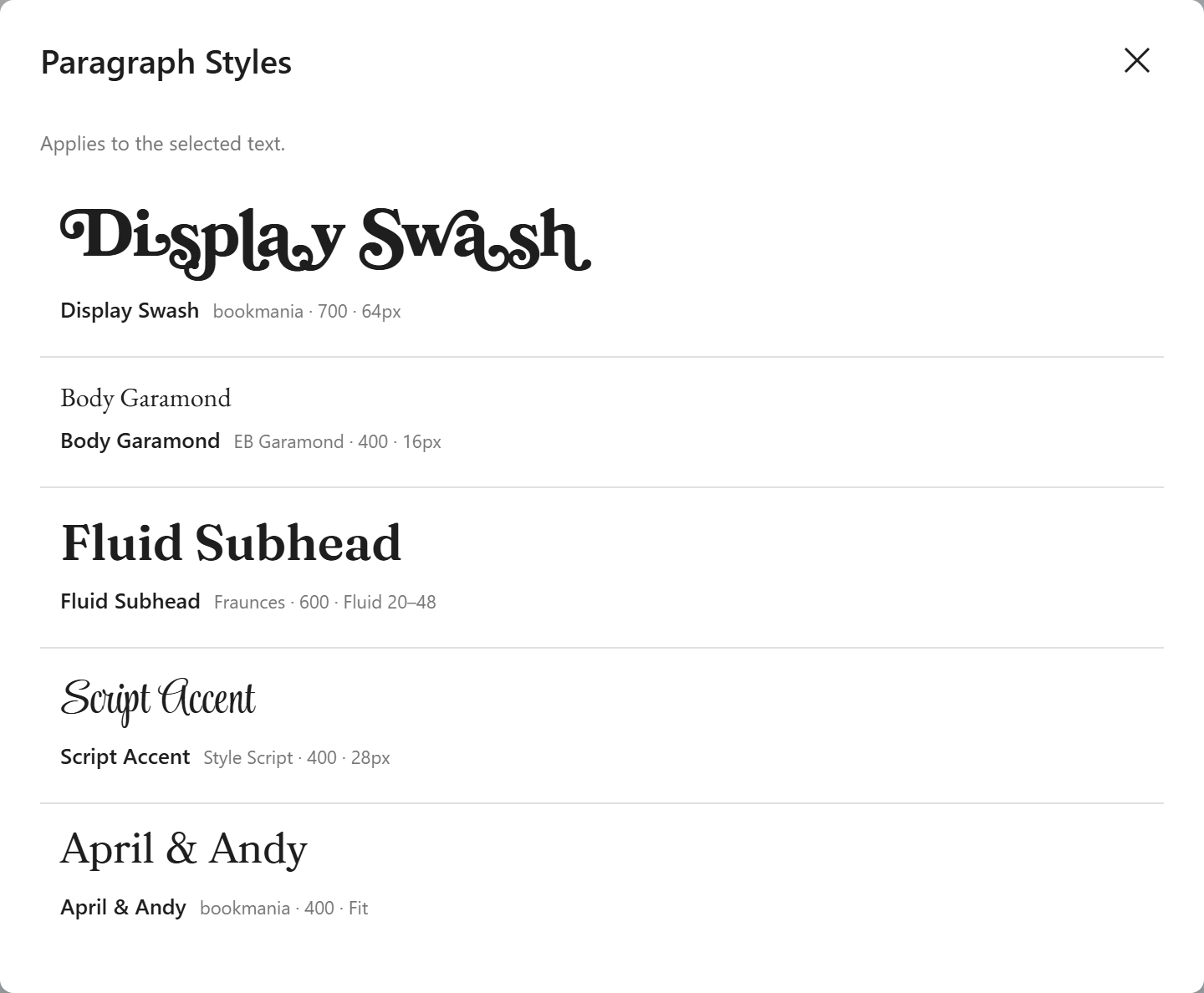
In the inline editor, click Browse styles… in the Paragraph Style section of the panel. In the Typography Stylist block, select the style in Paragraph Style in the Quick Feature Toggles or in the sidebar. With text selected, the panel in the Quick Feature Toggles works on that text only: Save Current Settings as Style makes the style from the selected text, and only that text gets the style. Update Style and Detach Style work on the style of the selected text, and Detach keeps its look. The panel in the sidebar always works on the whole block. You can also use the Paragraph Styles toolbar button. That button shows in the Typography Stylist block, and next to the Typography Stylist Features button (the swash T) in other blocks.
The browser shows each style in its own font, with your selected words. You can search the list. You can group it by Font family, Size mode, or Recently used. You can move through it with the arrow keys. If text is selected, the style applies to the selection. If there is only a cursor, the style applies to the whole block. This works in Typography Stylist, Paragraph, and Heading blocks. In other blocks, for example a list item, select the text first.
Before a style replaces styling that the selection already has, the editor asks you to confirm.
Can a style apply to a whole Paragraph or Heading block?
Yes. In a core Paragraph or Heading block:
- Select the block.
- In the block sidebar, open Paragraph Style and click Browse styles….
- Pick the style.
You can also put the cursor in the block, do not select text, and use the Paragraph Styles toolbar button.
The style goes into the block’s Additional CSS class(es) field as typost-styled typost-ps-N. Do not remove these classes by hand. To remove the style, click Detach Style in the Paragraph Style panel. In these blocks, Detach removes the style. The block keeps its own settings and its other classes.
The block’s own sidebar settings, for example font size, letter spacing, and line height, override the style. The theme’s block styles, for example “Outline”, keep working. Update Style on text elsewhere also changes these blocks. If the style was deleted, the panel shows Missing style. Click Detach Style to remove the class.
A first letter hang in the style also applies to these blocks. It has no effect when the block is centered, aligned to the end, has a drop cap, or has a text indent.
How is a style rendered on the frontend?
The plugin uses a CSS class, not inline styles. This is why styles are useful. When you change a style, every block that uses it changes too. All the blocks use the same CSS rule. They do not each hold a copy.
A single post or page prints CSS only for the styles that it uses. Archive pages, the blog page, and search results print all styles.
What does “modified” mean?
After you apply a style, the panel compares the block’s current settings with the saved settings. If you change a setting, the badge shows (modified). You then have three choices:
- Update Style: Save your changes to the style. Every block that uses the style changes.
- Save as New: Keep the original and save your changes as a new style.
- Detach Style: Keep the current look, but stop using the style.
Can a style use fit-to-width?
Yes. A style can store fontSize: 'fit' with its maximum size and its fallback range. When you apply this type of style to a block, the block changes to fit mode.
When you apply it to an inline selection, the selection uses the responsive range. Fit mode measures a whole line, and part of a line has no width to fill. See Responsive and fit-to-width sizing.